PublishNet ERP — Complete Operations Flow
Publishing Distribution & Subscription Operations Platform
From subscriber acquisition to magazine delivery, payment reconciliation, and AI-powered decision support
Each phase below includes actual screenshots showing how the data appears in the system
From subscriber acquisition to magazine delivery, payment reconciliation, and AI-powered decision support
Each phase below includes actual screenshots showing how the data appears in the system
Executive Dashboard — The Starting Point role-based
★
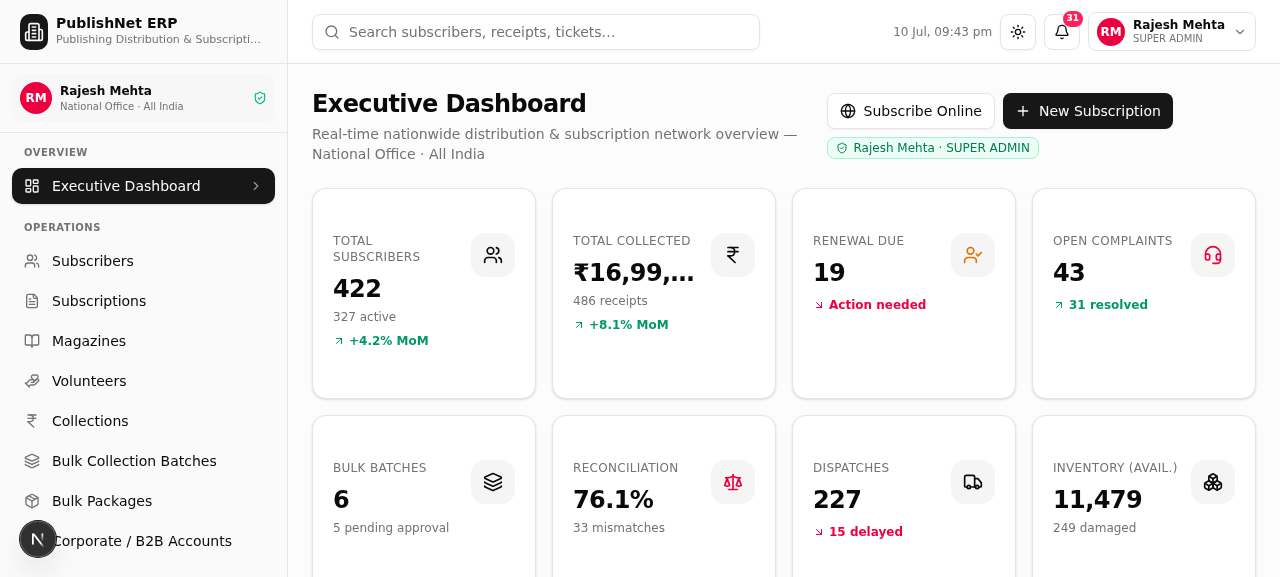
Role-Based Executive Dashboard
The dashboard is the first screen every user sees. It changes based on the logged-in role (Super Admin sees nationwide KPIs; Finance sees reconciliation rings; Volunteer sees personal task list; Customer Care sees complaint queue). Key actions — "Subscribe Online", "New Subscription" — are available right from the header.
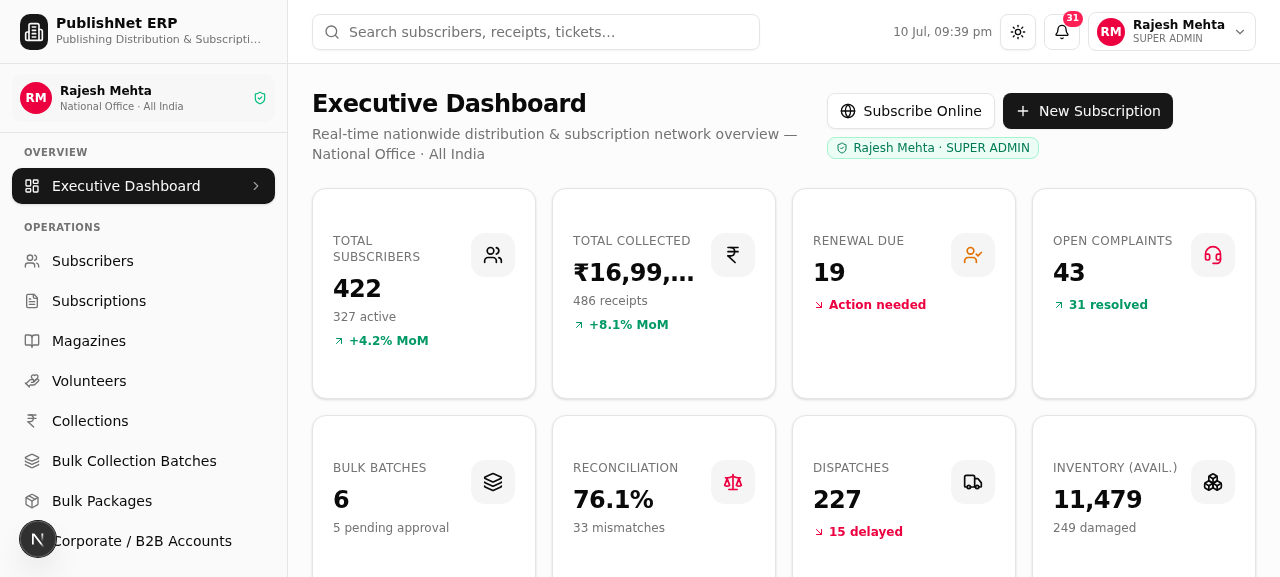
Screenshot: Executive Dashboard showing 8 live KPIs (420 subscribers, ₹16.99L collected, 43 open complaints), revenue trend chart, payment modes pie, delivery performance bar, and top states ranking.
↓
Phase 1 — Subscriber Acquisition 5 channels
1
Website / Online Portal (Self-Service Checkout)
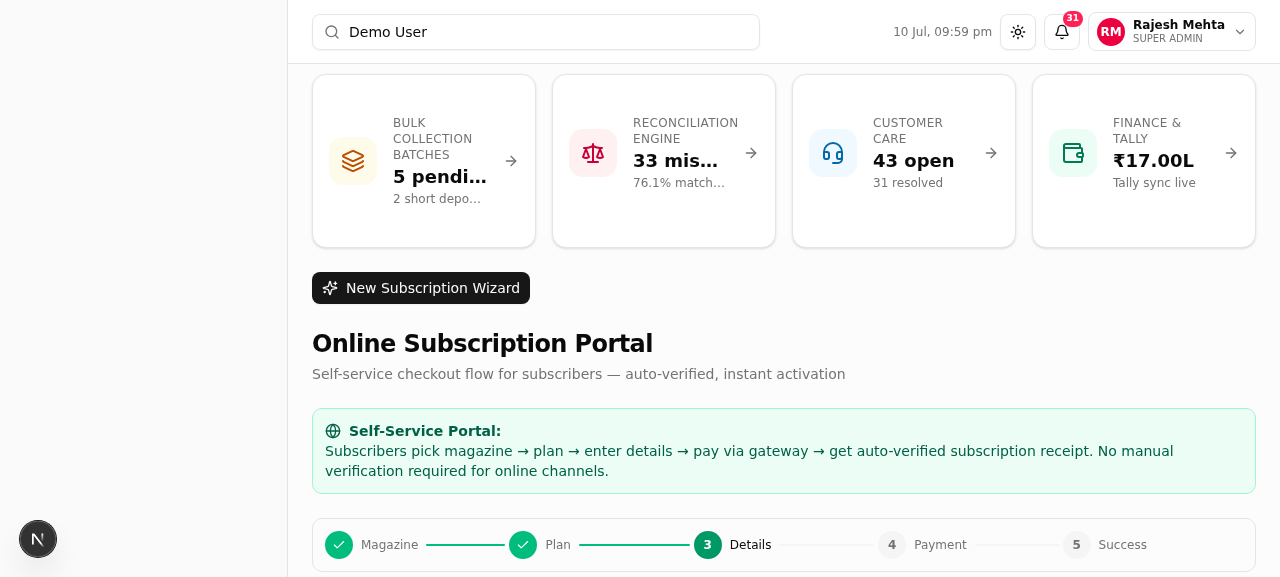
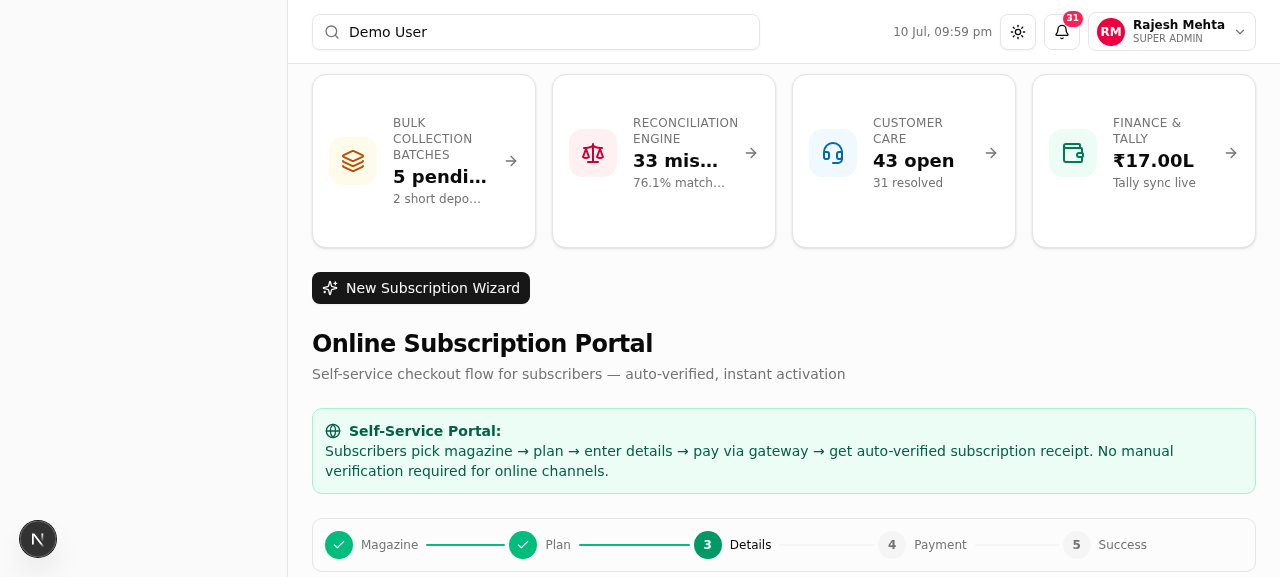
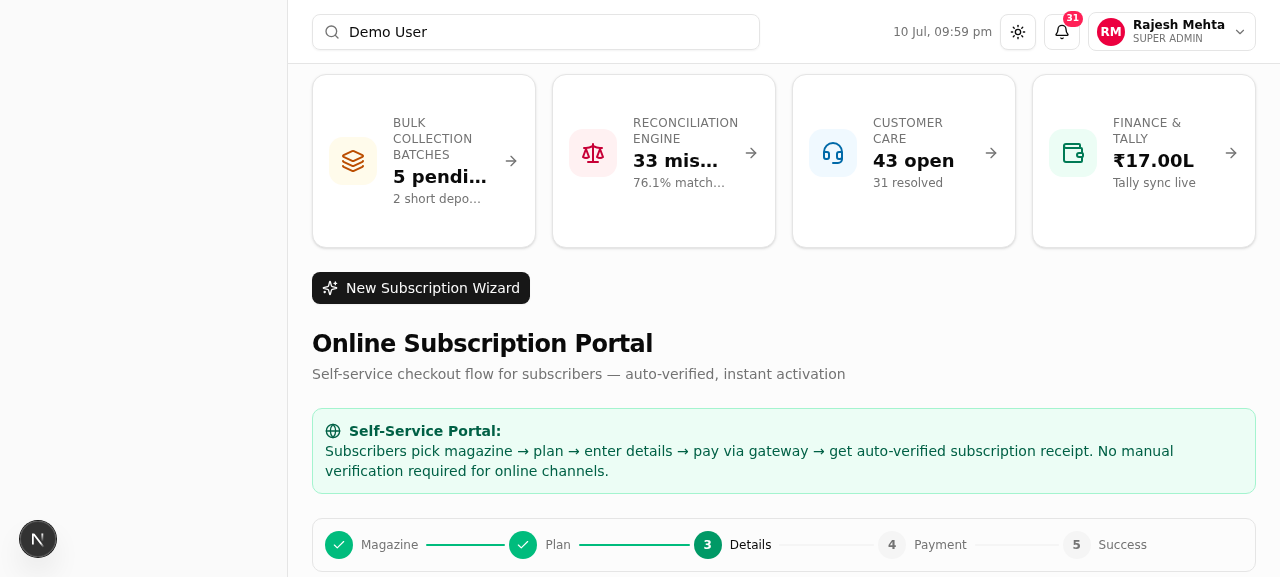
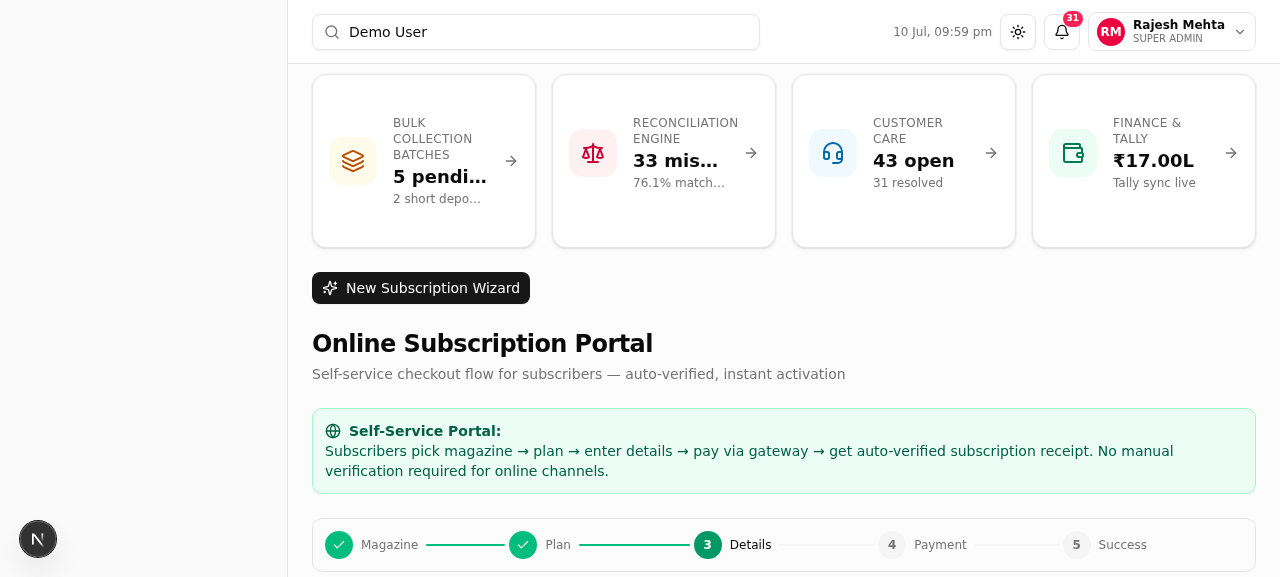
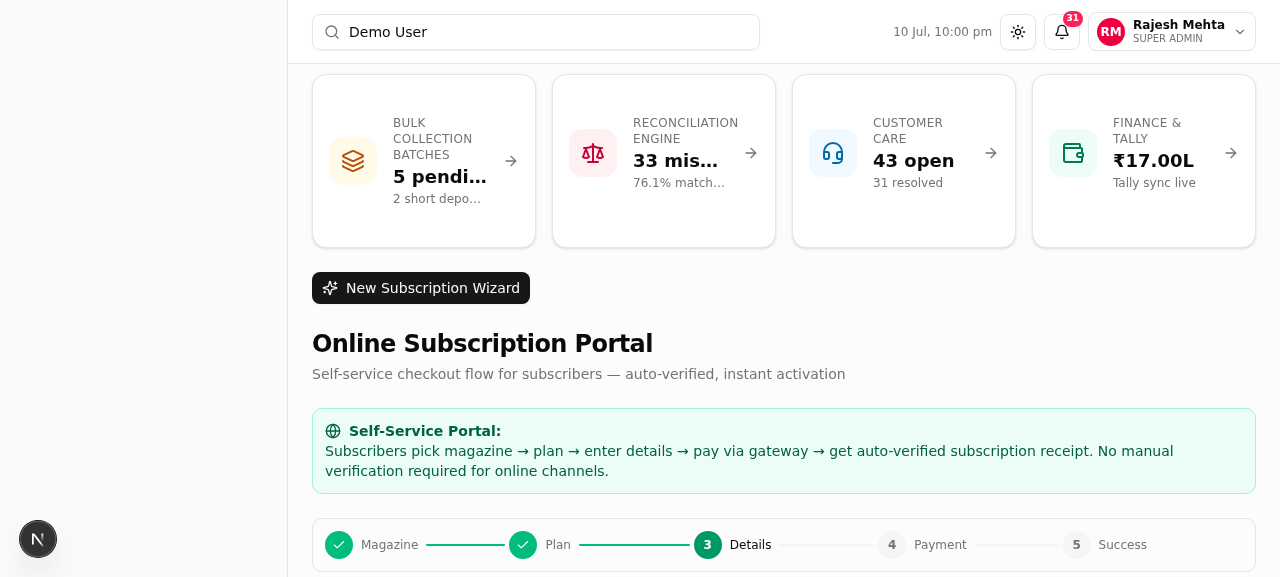
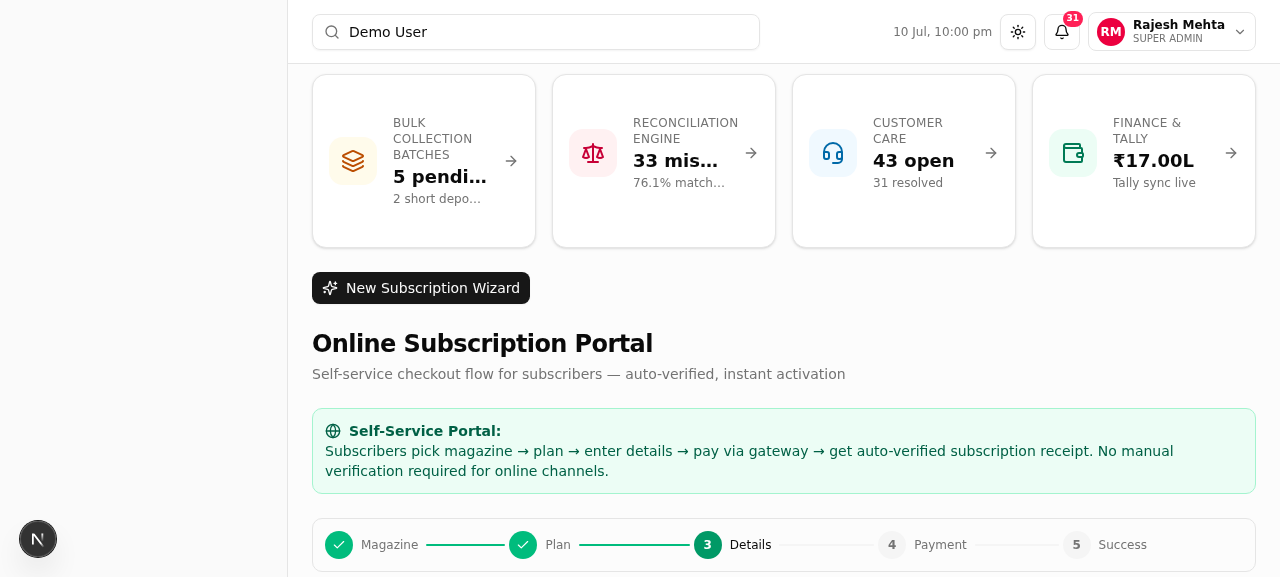
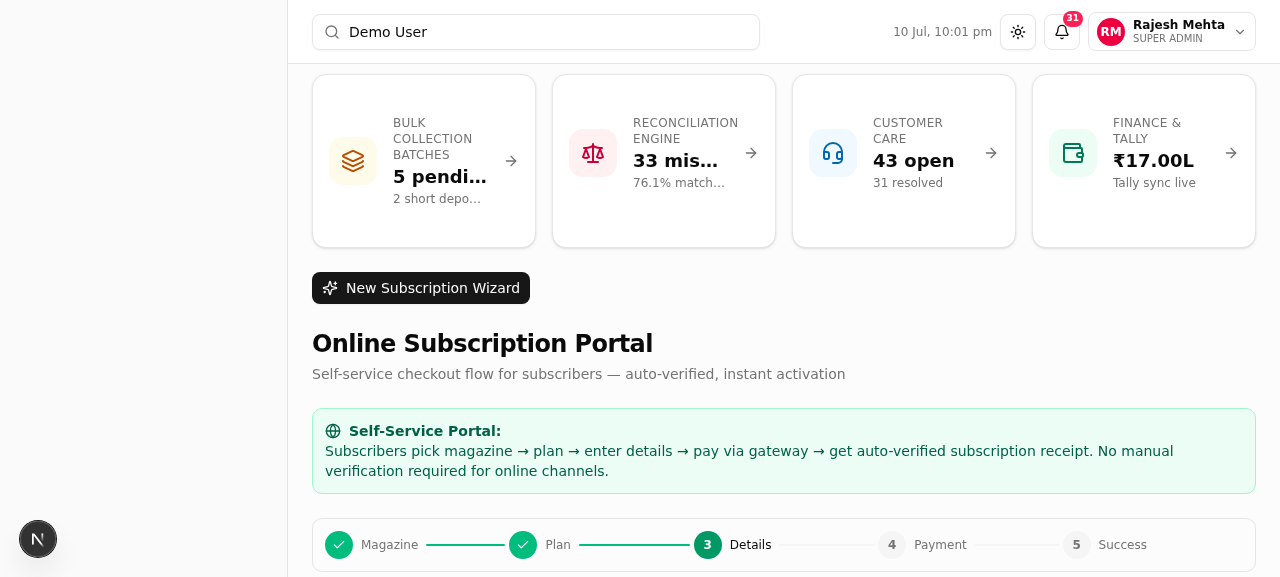
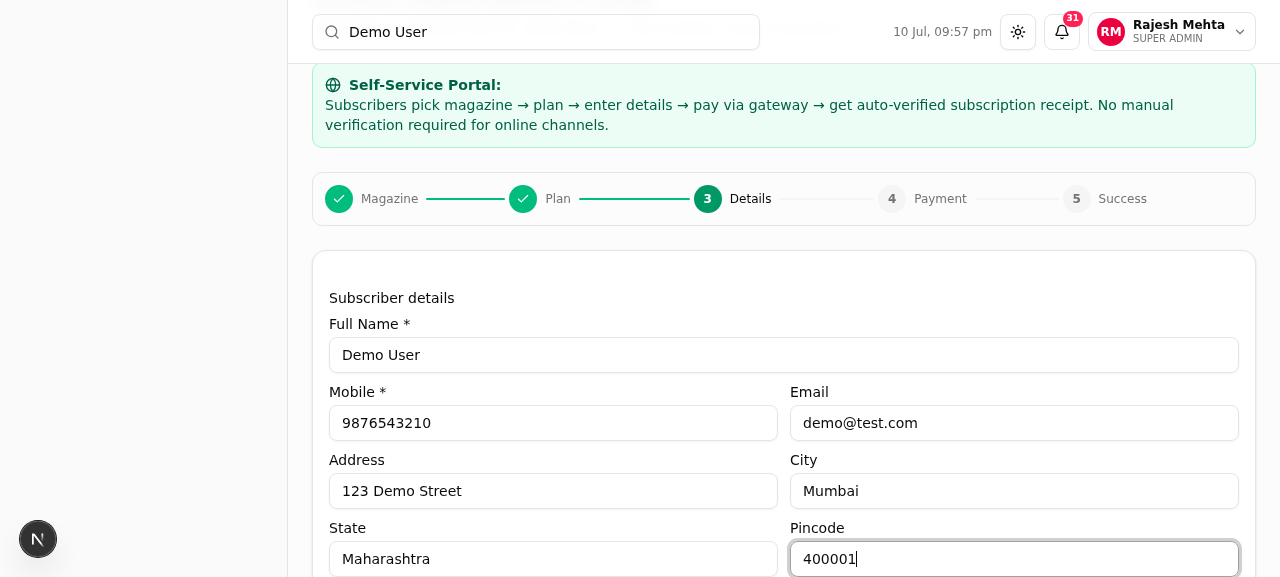
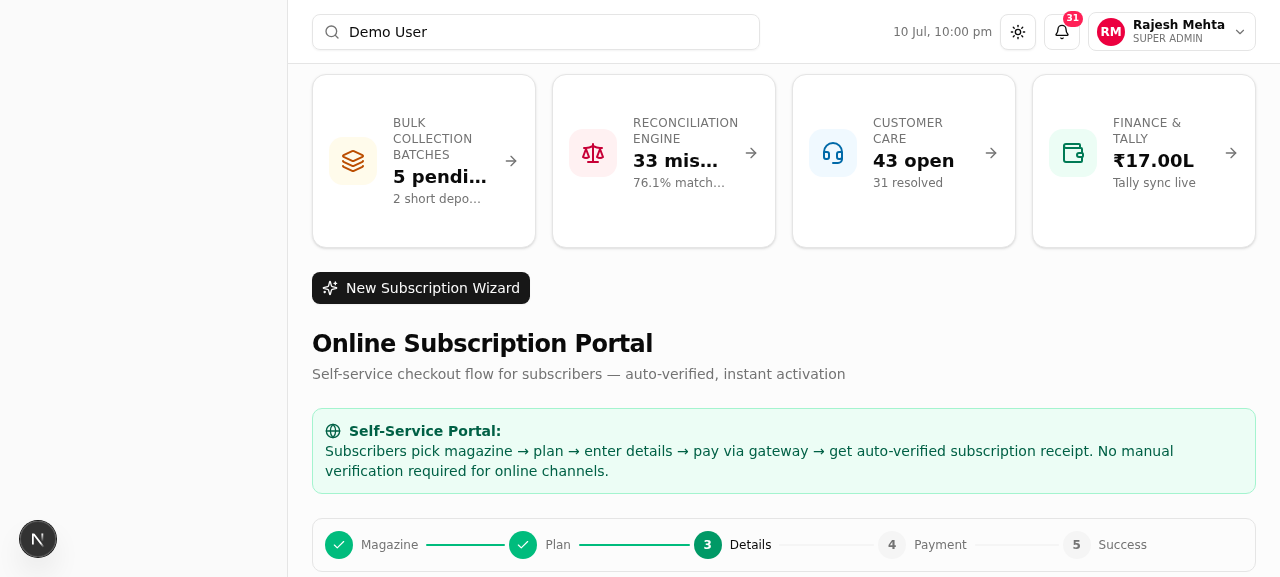
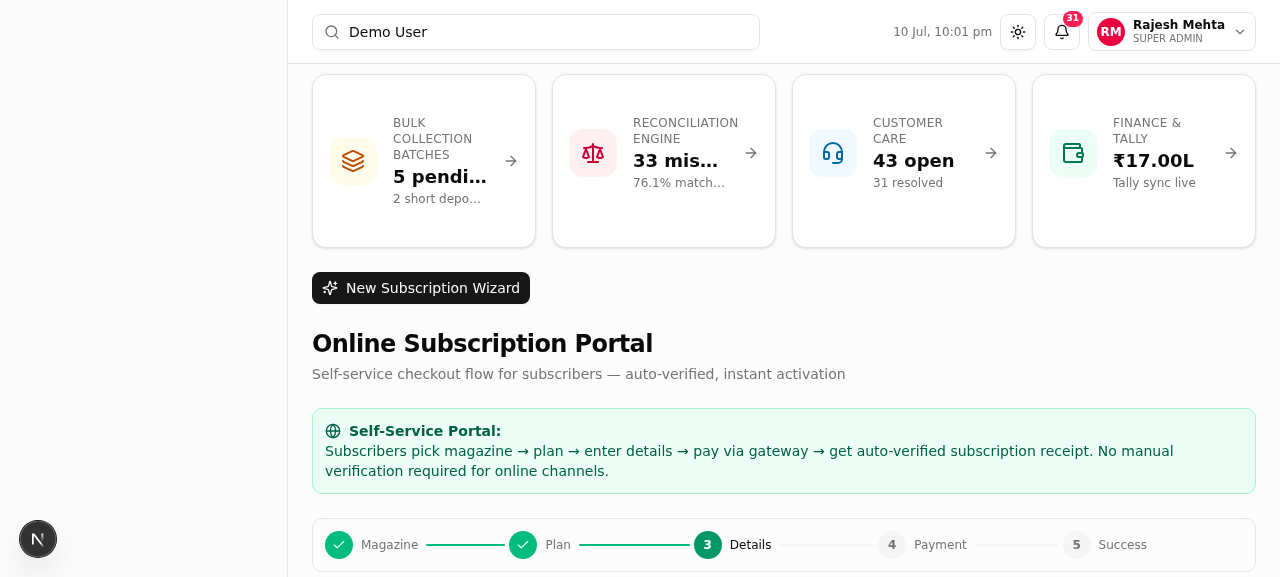
Subscriber visits the website → selects magazine (Panchjanya/Organiser) → picks plan (1/3/5 Year) → fills delivery details → pays via payment gateway → gets auto-verified receipt. Subscription activates instantly — no manual approval needed.
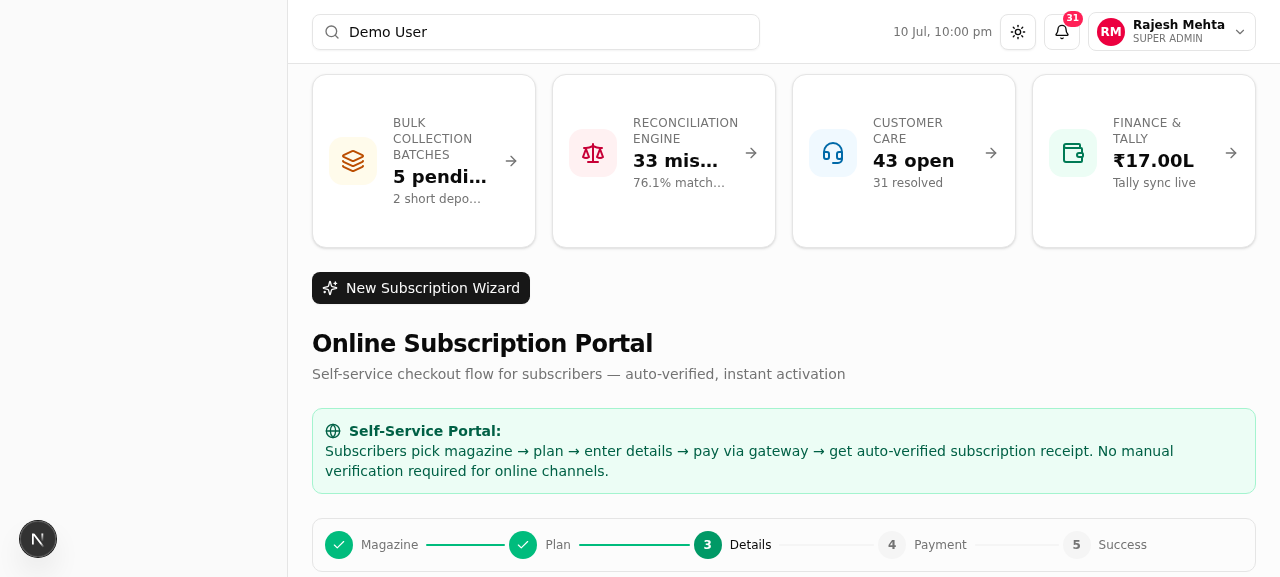
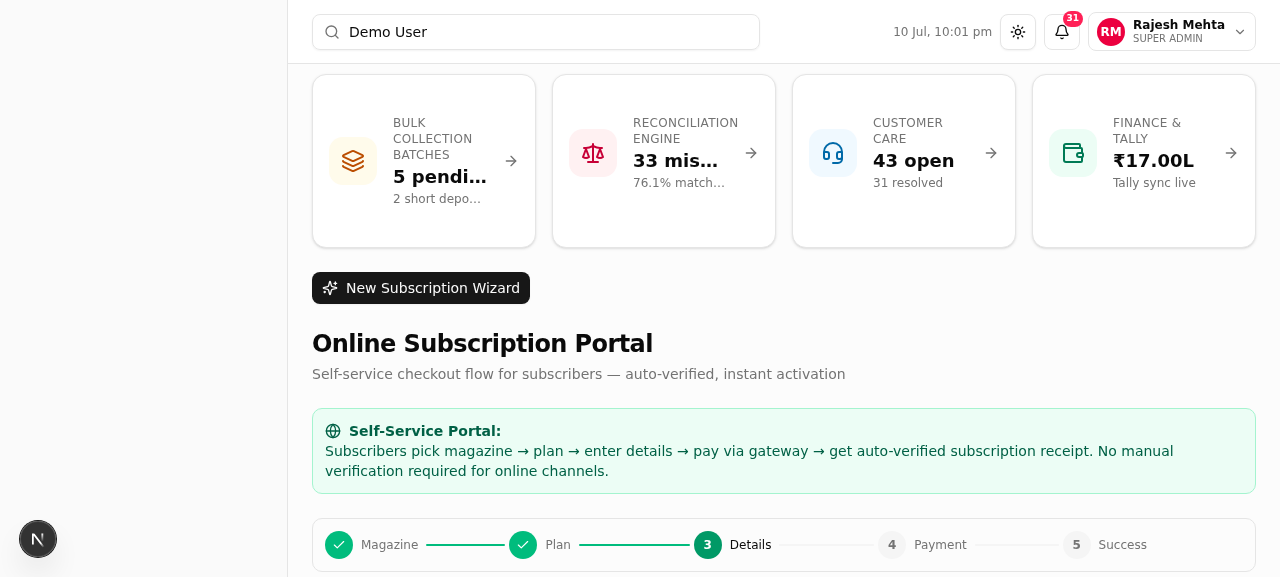
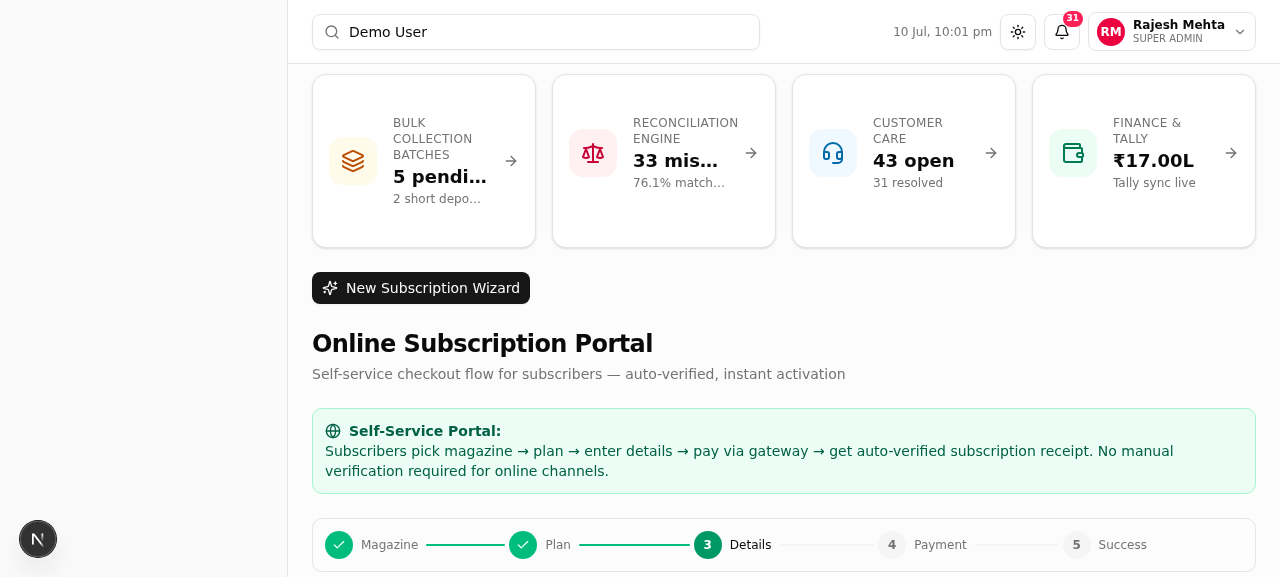
Screenshot: Online Subscription Portal showing the 4-stage checkout (Magazine → Plan → Details → Payment) with a simulated payment gateway. The receipt shows "✓ Auto-Verified" status.
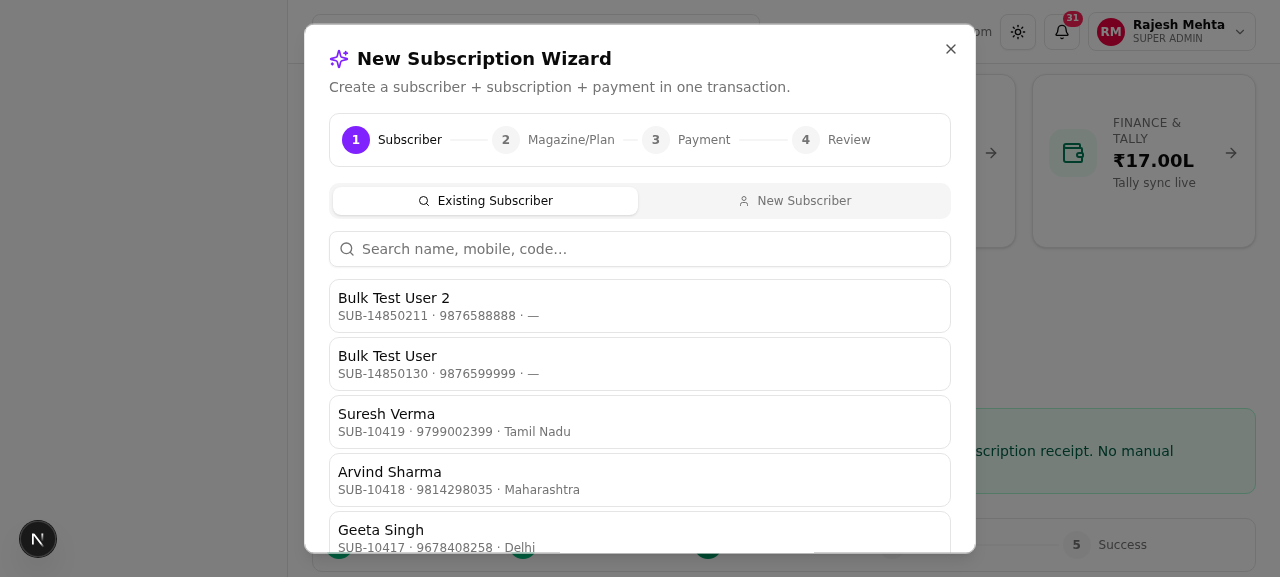
Screenshot: New Subscription Wizard — 4-step flow (Subscriber → Magazine/Plan → Payment Channel → Review). Shows existing/new subscriber toggle, magazine cards with pricing, 7 acquisition channels with verification messaging.
Screenshot: Bulk Upload dialog — CSV Upload mode with "Download Template" + "Choose CSV File" + paste area, and Manual Entry mode with editable table (Name, Mobile, Mandal, Nagar, Amount, Mode). Preview shows parsed rows before upload.
Screenshot: Bulk Upload Manual Entry mode — editable table with 5 pre-filled rows, "Add Row" button, and per-row delete. Quick-select for payment mode per row.
2
Volunteer Individual Subscription (4-Step Wizard)
Volunteer registers a subscriber by name → New Subscription Wizard (Subscriber → Magazine/Plan → Payment Channel → Review) → collects payment (Cash/UPI/Cheque) → payment recorded as PENDING finance verification. Subscriber is notified that verification is pending.
3
Bulk Package Distribution (Mohalla-Level)
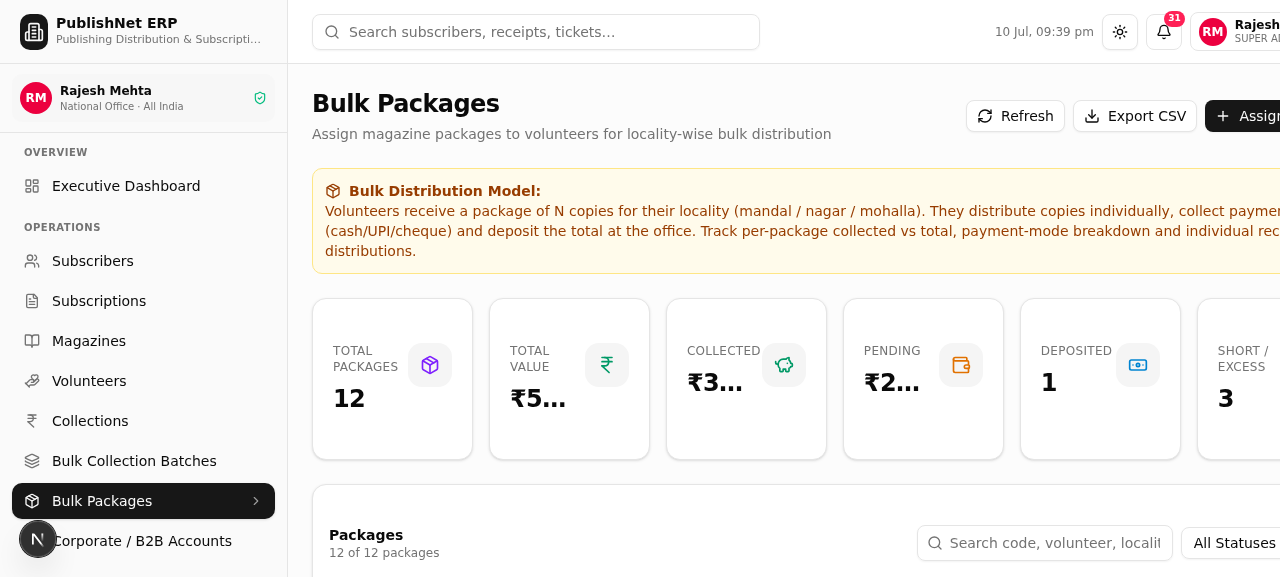
A volunteer is assigned N copies (20-50) of a magazine for a specific Mohalla (locality). They distribute copies to end subscribers in that area and submit one consolidated collection — no need to register each end subscriber individually. Optional: track named recipients via PackageDistribution. Packages are scoped by Mandal → Nagar → Mohalla.
Screenshot: Bulk Packages view showing 12 packages with copies (24-48), locality (Gandhi Nagar/Kailash Nagar/Gali no-18), collected vs total amounts, and deposit status badges. "Assign Package" dialog creates new packages.
Screenshot: "Assign Bulk Package" dialog — volunteer selection, magazine selection, Mandal/Nagar/Mohalla locality fields, copies, rate (₹1,450), auto-calculated total amount, and notes with copies (24-48), locality (Gandhi Nagar/Kailash Nagar/Gali no-18), collected vs total amounts, and deposit status badges. "Assign Package" dialog creates new packages.
4
Bulk CSV Upload
Volunteer/office uploads a CSV file matching their spreadsheet format (Name, Mobile, Address, Mandal, Nagar, Amount, Mode) → system creates subscribers + subscriptions + collection receipts in one transaction → success/error report shown. Template download available.
5
B2B Corporate Account (Company-Driven Bulk)
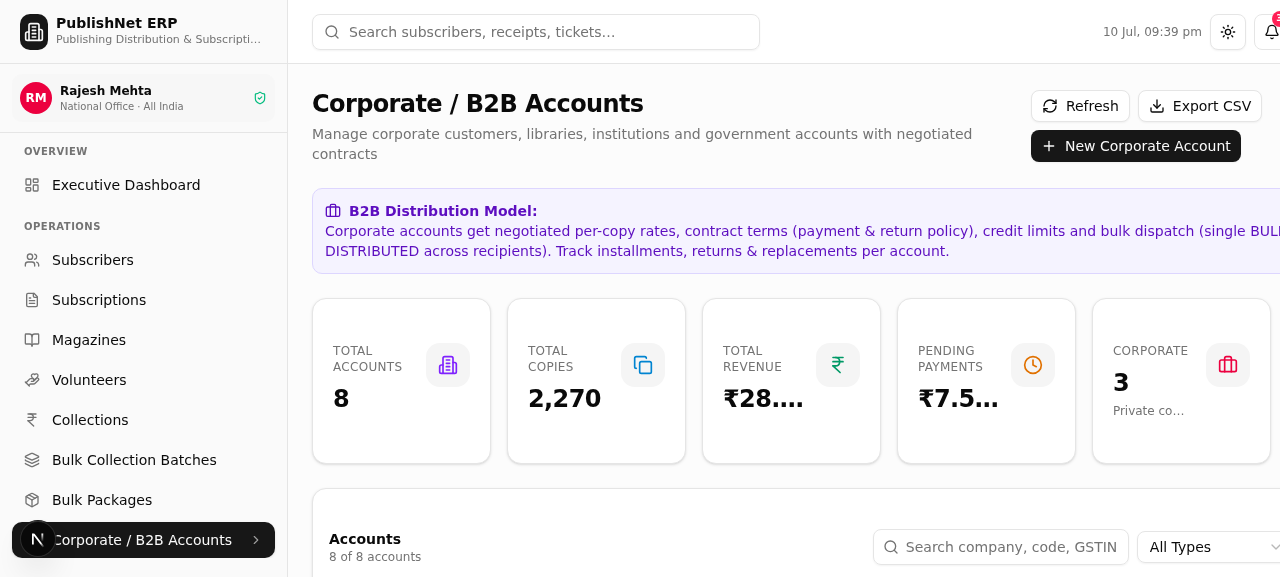
Company buys N copies at a negotiated rate (₹1,100-1,300/copy) → GST invoice generated → payment via NEFT/Cheque/PO/Credit → credit terms (50% advance + 50% in 30 days) → delivery as BULK_DROP (one office) or DISTRIBUTED (N employees). Returns/Replacements workflow for unsold copies.
Screenshot: Corporate / B2B Accounts showing 8 companies (TCS, Delhi Public Library, IIT Delhi, Reliance, etc.) with type, negotiated rate, copies, total value, and payment status. Detail dialog has 3 tabs: Overview, Payments & Credit, Returns & Replacements.
Screenshot: "New Corporate Account" creation dialog — company details (name, type, GSTIN, contact), negotiated rate, PO number, contract terms (payment terms, return policy, credit limit, credit days), and optional initial subscription (magazine, copies, payment mode, delivery model) with auto-calculated total (TCS, Delhi Public Library, IIT Delhi, Reliance, etc.) with type, negotiated rate, copies, total value, and payment status. Detail dialog has 3 tabs: Overview, Payments & Credit, Returns & Replacements.
↓
Phase 2 — Payment Collection & Verification 3 paths
6
Online Payment (Auto-Verified)
Payment gateway confirms payment → system sets verification=VERIFIED, reconciliation=MATCHED, approval=APPROVED → subscription activated instantly → receipt generated with "✓ Auto-Verified" → notification sent. No human intervention needed.
7
Offline Payment (Pending Finance Verification)
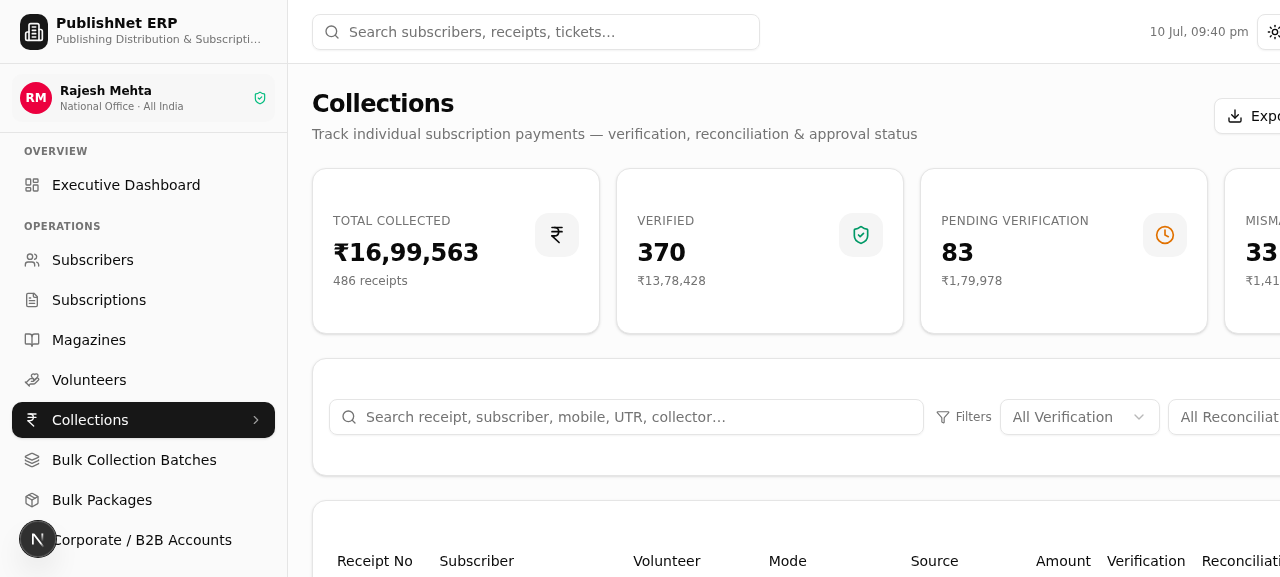
Cash/UPI/Cheque collected by volunteer or office → verification=PENDING → receipt generated but subscriber notified "pending verification" → finance team reviews → approves or flags. The Collections view shows all receipts with verification badges (Verified=green, Pending=amber, Mismatch=red).
Screenshot: Collections view showing 4 stat cards (Total Collected ₹16.99L, Verified, Pending Verification, Mismatches), filterable table with receipts, verification/reconciliation/approval badges, and "Record Payment" button for manual entry.
Screenshot: "Record Payment" dialog — subscriber search, amount, payment mode (Cash/UPI/Cheque/Bank Transfer/POS/Gateway), collection source (Volunteer/Block/District/Head Office), UTR reference, and pending verification notice (Total Collected ₹16.99L, Verified, Pending Verification, Mismatches), filterable table with receipts, verification/reconciliation/approval badges, and "Record Payment" button for manual entry.
8
Bulk Batch Deposit (Volunteer Consolidated)
Volunteer deposits consolidated amount for a bulk package → CollectionBatch created → finance reviews batch totals (expected vs deposited) → approves/rejects/reconciles → short deposits (deposited < expected) and excess deposits (deposited > expected) flagged automatically.
↓
Phase 3 — Reconciliation Engine & Finance AI-powered
9
Automated Reconciliation Engine
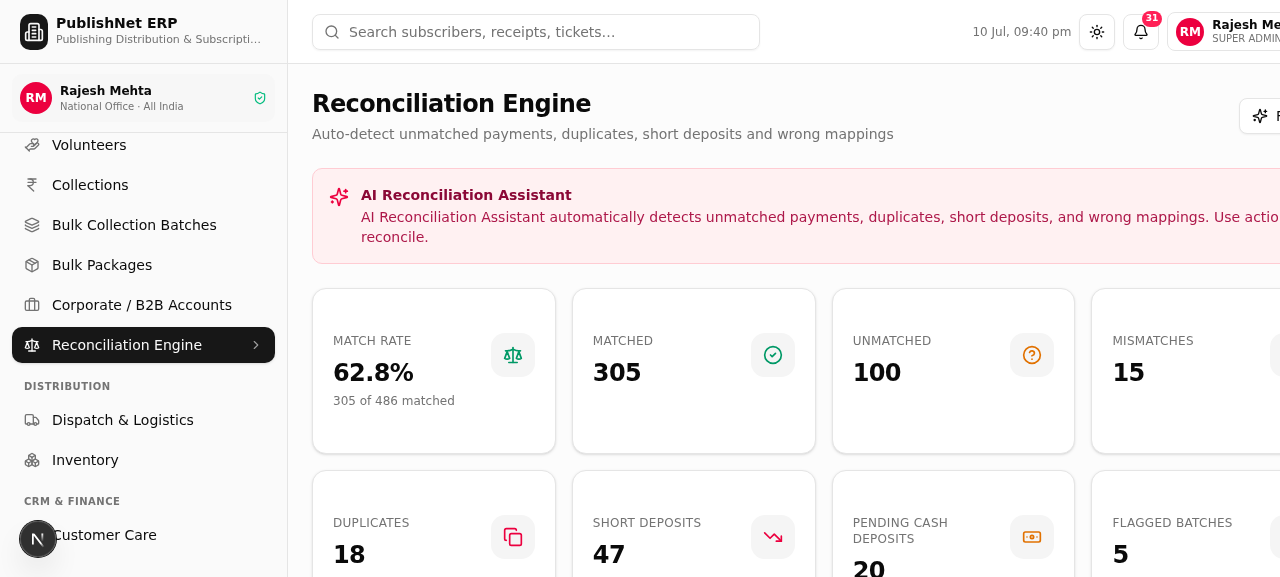
System automatically detects 6 anomaly types: Unmatched payments (no subscriber mapping), Mismatches (wrong amount/subscriber), Duplicates (same payment twice), Short deposits (less than expected), Excess deposits (more than expected), Cash not deposited. Each has Match/Allocate/Flag actions. The Reconciliation Engine view has 6 tabs — one per anomaly type — with counts and action buttons.
Screenshot: Reconciliation Engine showing 8 stat cards (match rate, matched, unmatched, mismatches, duplicates, short deposits, pending cash, flagged batches) and 6 tabs (Unmatched Payments, Mismatches, Duplicates, Short Deposits, Excess Batches, Cash Not Deposited) with per-row Match/Allocate/Flag actions.
10
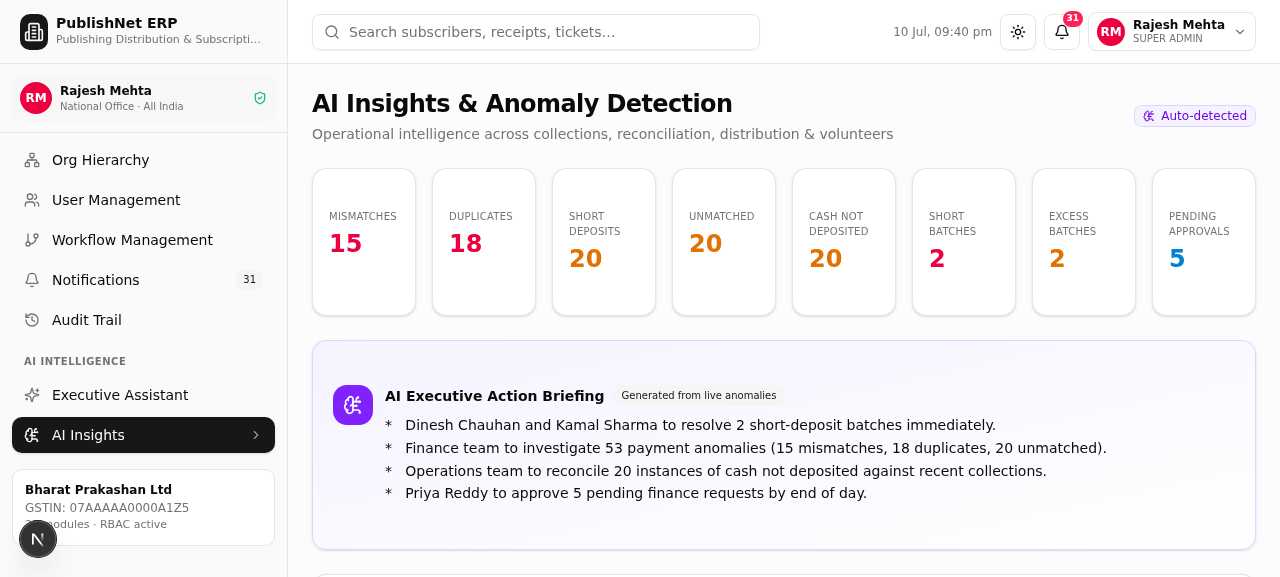
AI Reconciliation Assistant (Anomaly Detection + LLM Briefing)
AI queries live database for all anomaly types → generates 7 insight cards (critical/warning/info severity) → calls LLM to produce executive action briefing with specific names and recommendations → demand forecast per state → volunteer risk scoring. The AI Insights view shows everything in one dashboard.
Screenshot: AI Insights view showing 8 stat cards (mismatches=15, duplicates=18, shorts=20, etc.), AI Executive Action Briefing panel (violet, LLM-generated), and anomaly cards with severity badges (critical=red, warning=amber, info=blue).
11
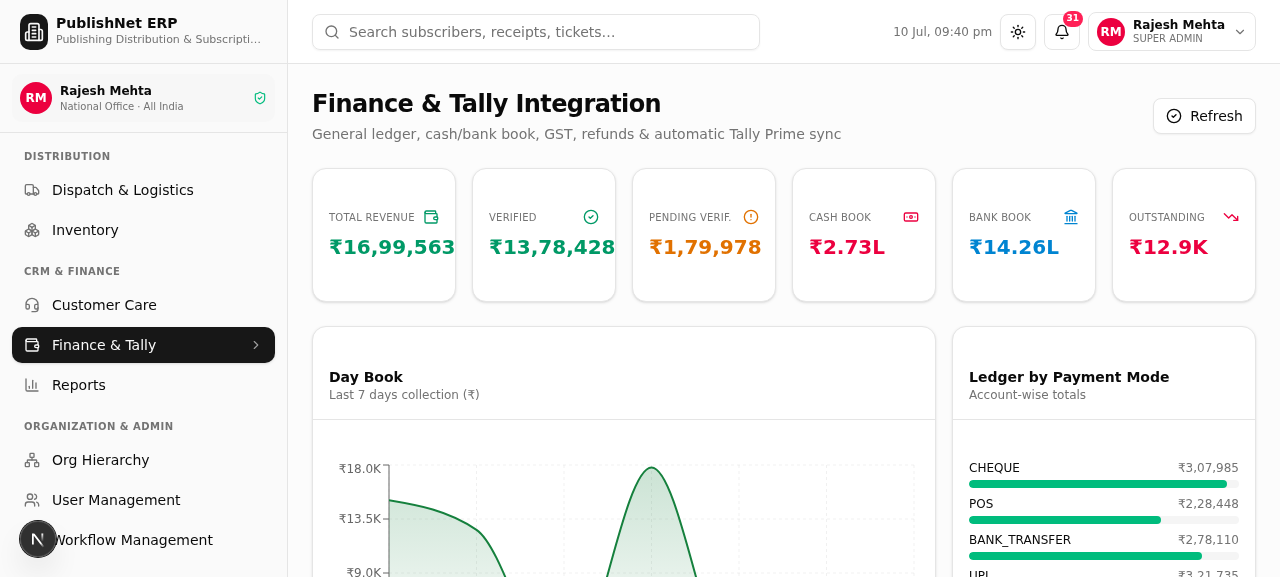
Finance & Tally Integration
Finance approves batches → posts to General Ledger → Tally Prime auto-sync (Receipts, Journal, Credit Notes, Customer Ledgers, GST) → day book chart (last 7 days) → cash book vs bank book → outstanding tracking → GST calculation (5%). The Finance view shows Tally sync status per voucher type with "Sync Now" buttons.
Screenshot: Finance & Tally view showing 6 stat cards (Total Revenue, Verified, Pending, Cash Book, Bank Book, Outstanding), revenue trend area chart, payment mode ledger bars, and Tally Prime sync table with per-voucher sync status and "Sync Now" buttons.
↓
Phase 4 — Magazine Dispatch & Delivery end-to-end tracking
12
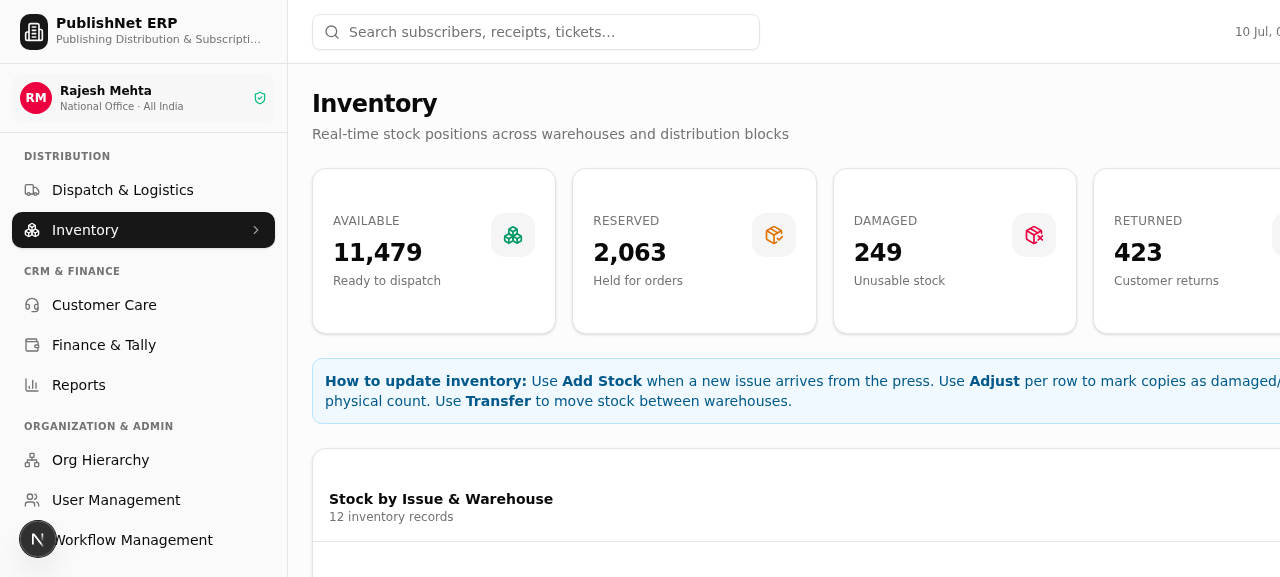
Inventory Management (7-Level Hierarchy)
When a new issue arrives from the press → "Add Stock" (magazine + warehouse + issue + copies) → stock tracked across 7 levels: National → State → District → Block → Mandal → Nagar warehouses. Adjust stock (mark damaged/returned/reserved) or do physical count. Transfer stock between warehouses.
Screenshot: Inventory view showing 5 stat cards (Available, Reserved, Damaged, Returned, Complimentary), guide banner, and table with per-row stacked bar visualization and Adjust/Transfer action buttons.
Screenshot: "Add Stock" dialog — magazine selection, warehouse selection (7-level hierarchy), issue label, copies, and notes. Used when a new issue arrives from the press (Available, Reserved, Damaged, Returned, Complimentary), guide banner, and table with per-row stacked bar visualization and Adjust/Transfer action buttons.
13
Dispatch Recording & Tracking
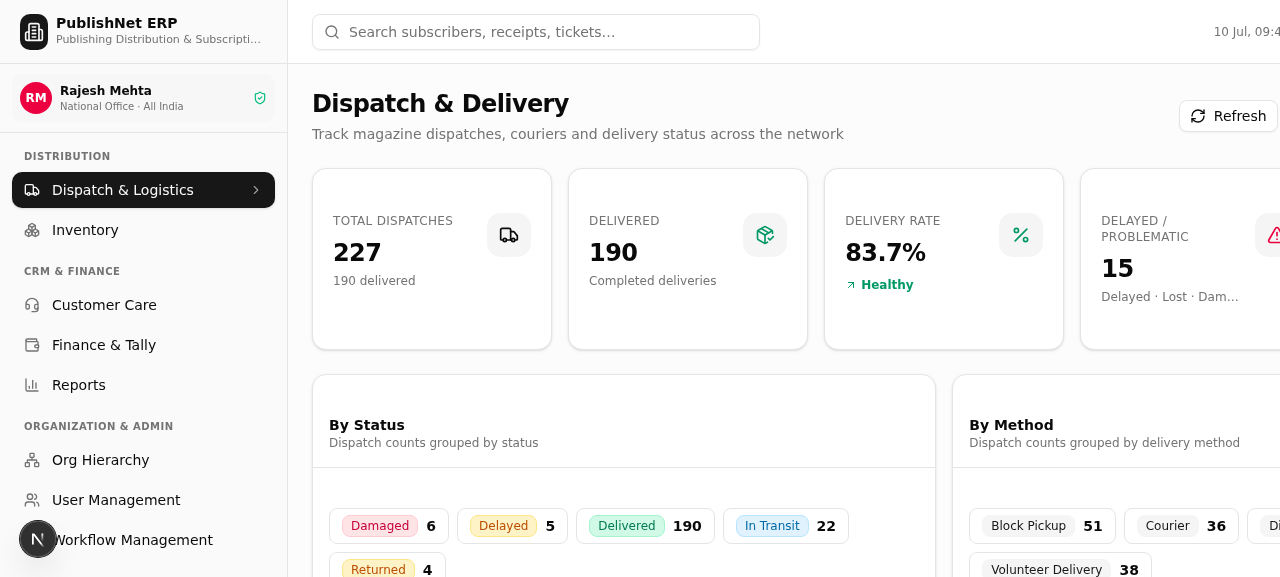
"Record Dispatch" button creates a dispatch record (magazine + issue + subscriber + method + courier + tracking number) → 6 delivery methods (India Post, DTDC, Blue Dart, Volunteer, District/Block Pickup, Corporate Dispatch) → per-row "Deliver" (one-click mark delivered) and "Update" (change tracking/status) actions.
Screenshot: Dispatch & Delivery view showing 5 stat cards (Total, Delivered, Delivery Rate, Delayed, Active Methods), status/method breakdown badges, and table with per-row Deliver/Update action buttons and "Record Dispatch" button in header.
Screenshot: "Record Dispatch" dialog — magazine selection, issue label (auto-suggested from frequency), subscriber search, delivery method, courier, tracking number, and copies (Total, Delivered, Delivery Rate, Delayed, Active Methods), status/method breakdown badges, and table with per-row Deliver/Update action buttons and "Record Dispatch" button in header.
14
Delivery Calendar (Month-Wise Grid)
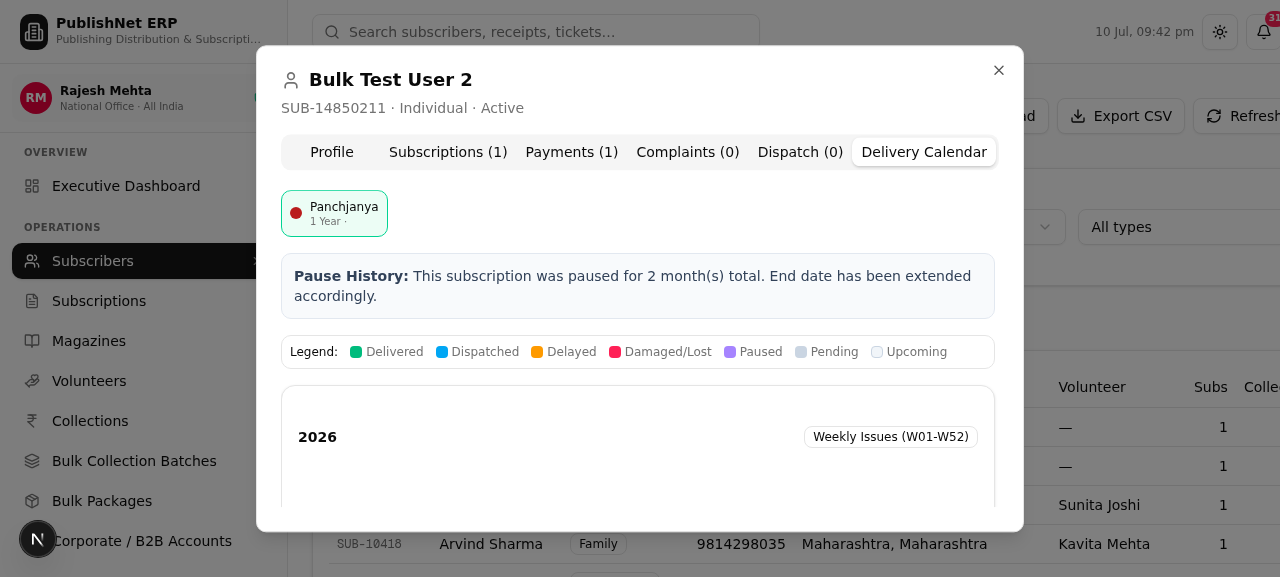
Per-subscriber delivery calendar shows every issue (W01-W52 for weekly, Jan-Dec for monthly) as a color-coded cell: green=delivered, blue=dispatched, amber=delayed, red=damaged, violet=paused, gray=pending. Hover shows tracking number, courier, and dates. Available in the subscriber 360° dialog.
Screenshot: Delivery Calendar tab in subscriber 360° dialog showing 104 issue cells across 2 years, color-coded by status (green=delivered, gray=pending, light=upcoming), with legend and pause info banner.
Screenshot: Subscriber 360° dialog — Profile tab showing contact details, Mandal/Nagar/Mohalla locality, volunteer assignment, and 7 tabs (Profile, Subscriptions, Delivery Calendar, Journey, Payments, Complaints, Dispatch)
Screenshot: "Pause Subscription" dialog — current subscription details, pause duration buttons (1/2/3/6 months), reason field, info banner explaining end-date extension, and pause history
Screenshot: Online Portal — subscriber details form filled with name, mobile, email, delivery address, city, state, pincode, and auto-renew toggle. Next step is the payment gateway° dialog showing 104 issue cells across 2 years, color-coded by status (green=delivered, gray=pending, light=upcoming), with legend and pause info banner.
15
Subscription Pause/Resume
Subscriber requests pause (1-6 months, e.g. "going on trip") → status=PAUSED, dispatch stops → delivery calendar marks paused issues in violet → on resume, end date auto-extended by paused duration → full pause history tracked (dates, months, reason). Accessible from Subscriptions view and Customer Care.
↓
Phase 5 — Customer Care & Complaint Resolution 360° view
16
Complaint Registration & SLA Tracking
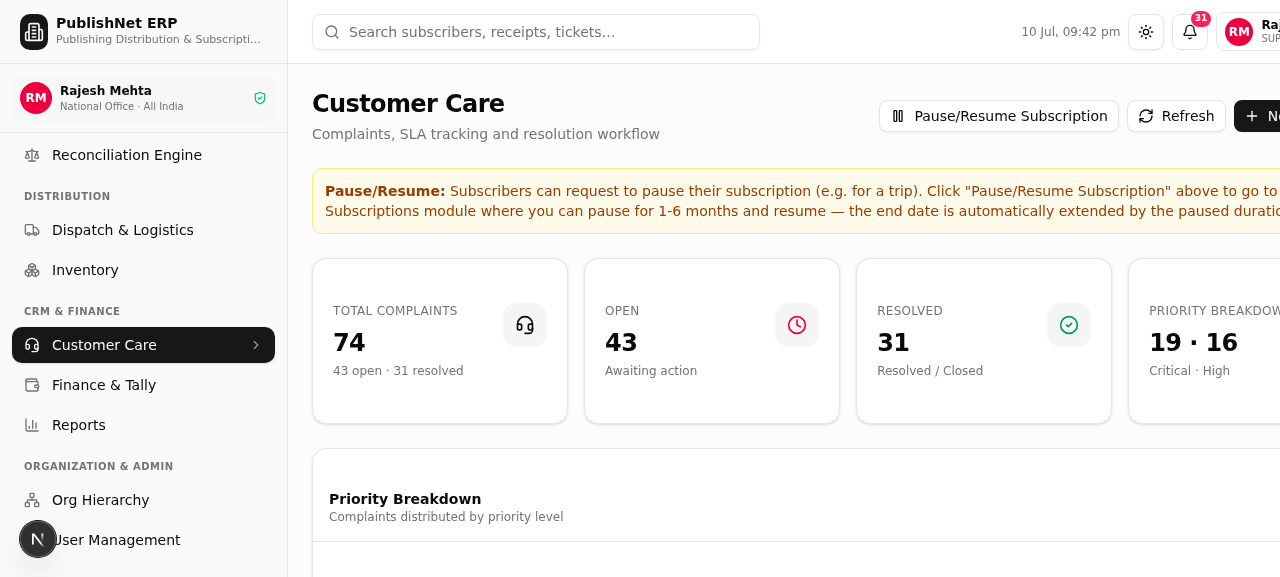
Open ticket with 9 complaint types (Not Received, Late Delivery, Payment Issue, Renewal Issue, Address Change, Duplicate Sub, Refund Request, Wrong Magazine, Damaged Copy) → priority (Low/Medium/High/Critical) → SLA timer → workflow: Open → Assigned → In Progress → Resolved → Closed. "Pause/Resume Subscription" button available for subscription-related complaints.
Screenshot: Customer Care view showing pause/resume info banner, 4 stat cards (Total, Open, Resolved, Priority breakdown), filterable complaint table with priority/status badges, and "New Complaint" + "Pause/Resume Subscription" buttons.
Screenshot: "New Complaint" dialog — subscriber selection, complaint type (9 types), priority (Low/Medium/High/Critical), subject, description, and SLA hours, 4 stat cards (Total, Open, Resolved, Priority breakdown), filterable complaint table with priority/status badges, and "New Complaint" + "Pause/Resume Subscription" buttons.
17
Subscriber 360° View (7 Tabs)
Click any subscriber → dialog with 7 tabs: Profile (contact, address, Mandal/Nagar/Mohalla), Subscriptions (magazine, plan, period, status), Delivery Calendar (color-coded issue grid), Journey (lifecycle timeline: Created→Paid→Verified→Activated→Dispatched→Delivered), Payments (receipts with verification), Complaints (tickets with SLA), Dispatch (delivery history with tracking).
18
AI Customer Care Assistant
In complaint detail → "AI Draft Response" button → LLM generates a polite, empathetic reply based on complaint type + subscriber history → agent reviews/edits → saves as resolution. AI auto-classifies complaints and escalates high-priority cases.
↓
Phase 6 — AI Intelligence, Workflow & Administration role-based
19
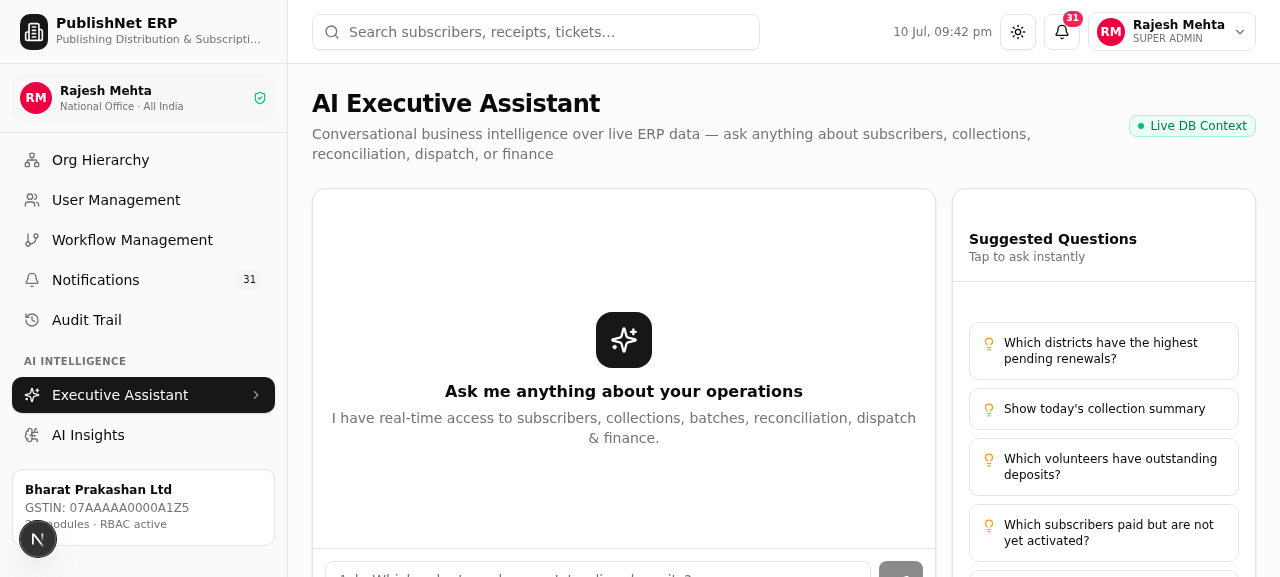
AI Executive Assistant (Conversational BI)
Executives ask questions in plain English: "Which volunteers have outstanding deposits?" → AI queries live database → LLM generates data-driven answer with specific numbers and recommendations. 8 suggested questions available. Live data snapshot shown alongside the answer.
Screenshot: AI Executive Assistant showing chat interface with suggested questions, conversation history, and live data snapshot panel showing current KPIs used for the answer.
20
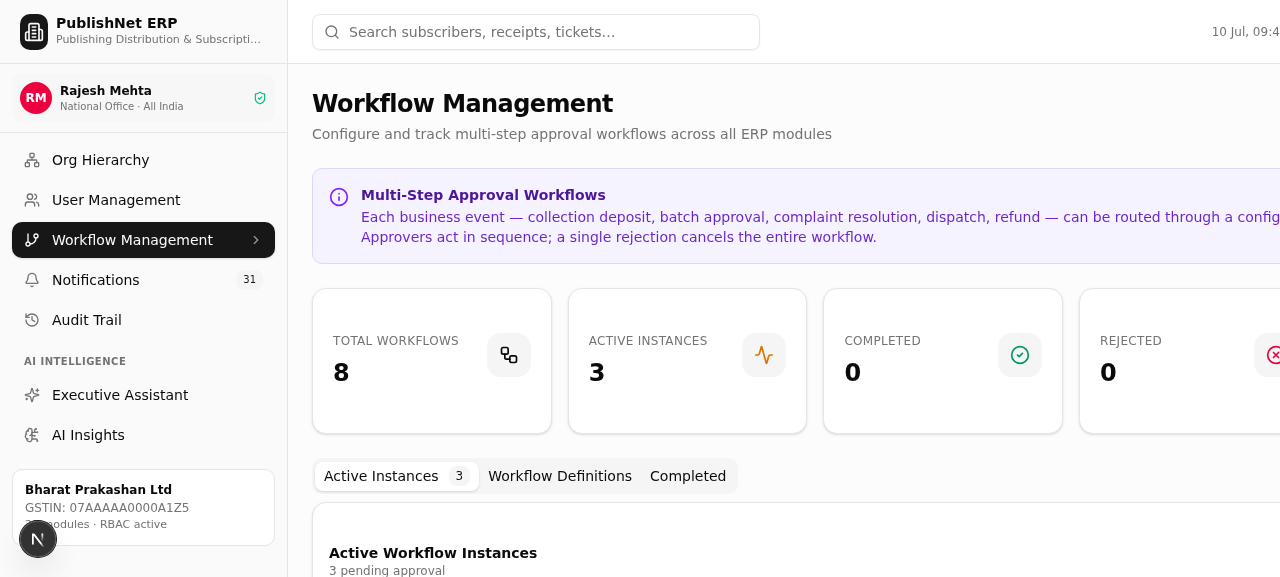
Workflow Management (8 Approval Workflows)
8 configurable multi-step approval workflows: Subscription Approval, Bulk Batch Approval, Dispatch Authorization, Complaint Resolution, Refund Approval, Returns Processing, Corporate Subscription Approval, Subscription Renewal. Each has role-based steps (Finance→Executive, Warehouse→Logistics, etc.) with approve/reject + comments. Vertical timeline shows pending/completed steps.
Screenshot: Workflow Management showing 5 stat cards (Total Workflows, Active, Completed, Rejected, Pending Approvals), 3 tabs (Active Instances, Definitions, Completed), and table with Approve/Reject buttons and step progress indicators.
Screenshot: Workflow Management — Active Instances tab showing pending workflow instances with step progress dots, Approve/Reject buttons, and module/event badges (Total Workflows, Active, Completed, Rejected, Pending Approvals), 3 tabs (Active Instances, Definitions, Completed), and table with Approve/Reject buttons and step progress indicators.
21
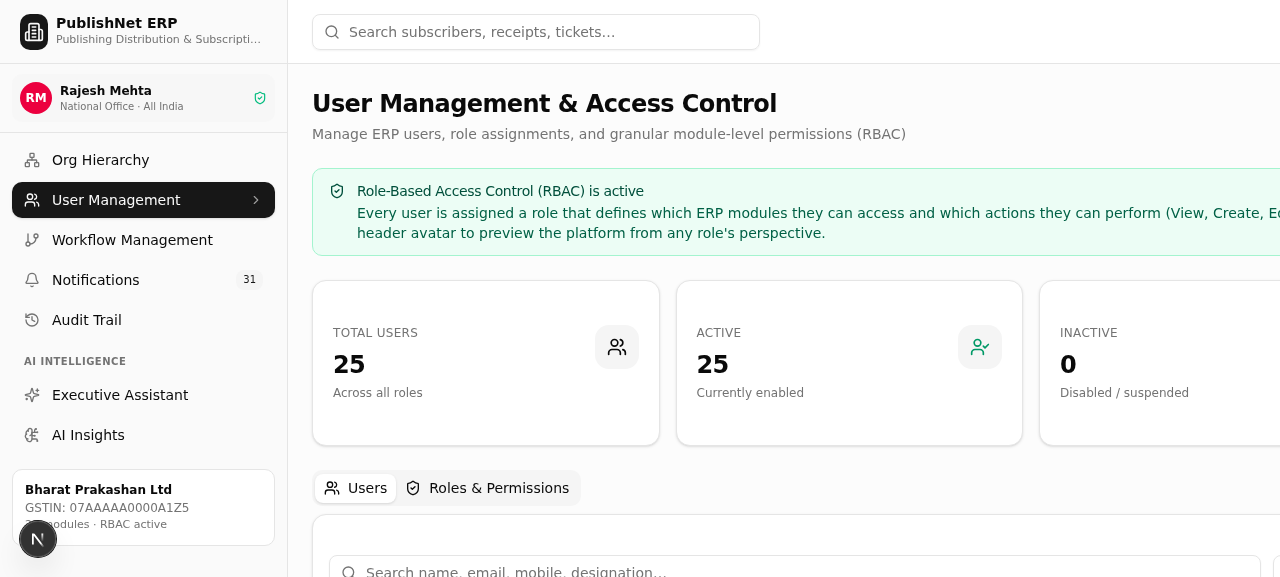
User Management & RBAC (17 Roles × 22 Modules)
17 roles (Super Admin, Finance, District Admin, Volunteer, Customer Care, Warehouse, Logistics, etc.) × 22 modules × 5 permissions (View/Create/Edit/Approve/Delete). ACL matrix shows green check/dash per permission per role. Delhi-scoped users see only Delhi data. Role switcher for demo with 13 users (8 national + 5 Delhi).
Screenshot: User Management view showing 4 stat cards, user table with role badges and org unit levels, and "Roles & Permissions" tab with ACL matrix (22 modules × 17 roles × 5 permissions with green check / gray dash).
Screenshot: "Add User" dialog — name, email, role selection (17 roles), mobile, designation, org unit selection (7-level hierarchy), and active toggle, user table with role badges and org unit levels, and "Roles & Permissions" tab with ACL matrix (22 modules × 17 roles × 5 permissions with green check / gray dash).
22
Reports & Analytics (22 Report Types)
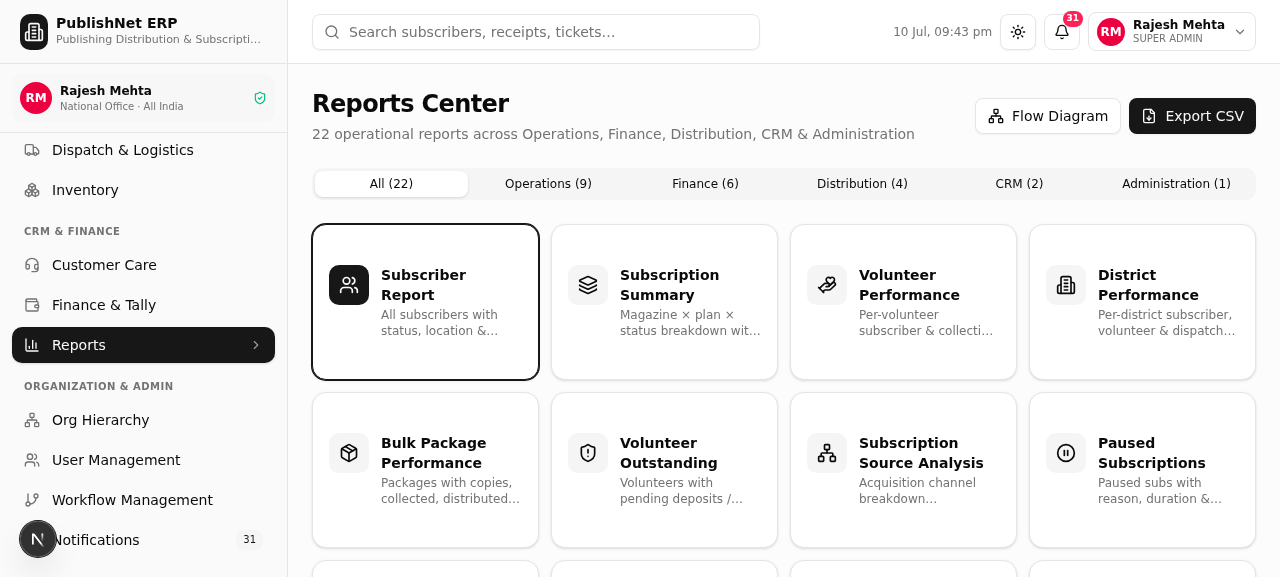
22 report types across 6 categories (Operations=9, Finance=6, Distribution=4, CRM=2, Administration=1). Each report has summary stat cards + detailed table + CSV export. Includes: Paused Subscriptions, Expiring Soon, Volunteer Outstanding, Reconciliation Summary, Finance Day Book, State-wise Performance, and more.
Screenshot: Reports Center showing 22 report cards grouped by category (Operations, Finance, Distribution, CRM, Administration) with category tabs, summary stat cards per report, and CSV export button. "Flow Diagram" button in header opens this flow diagram.
Auto-Verified / Instant
Pending / Needs Approval
Critical / Alert
AI-Powered / B2B
Standard Process
Location / Hierarchy